scope
Keyboard-first window switching on macOS, scoped to the current Space.
Keyboard focus follows you between Spaces, and the Space shortcuts switch instantly, or with a slide as long as you like.
What macOS gets wrong
⌘ Tab leaves the Space. macOS ⌘ Tab switches applications across all Spaces. If you organise your work into Spaces, that defeats the purpose — you reach for the other window in front of you and get yanked into a different Space instead. The closest native tool is Mission Control (three-finger swipe up, or ⌃ ↑). It does show the current Space's windows, but you pick one by pointing at it. If you would rather not reach for gestures or the pointer to change windows, there is no native way to cycle the windows in this Space from the keyboard.
The keyboard stays behind. Arrive on a Space and the window you were working in is in front, yet what you type goes nowhere, or into a window you did not pick, because macOS kept the previous Space's app active. You have to click the window first.
The Space shortcuts stall. While a three-finger swipe is still sliding, a swipe back cancels it, but ⌃ 1 … ⌃ 9 do nothing: you wait for the slide to end and press again. The slide they start has a fixed length, too: no setting shortens it, and Reduce motion only swaps it for a fade.
What scope does
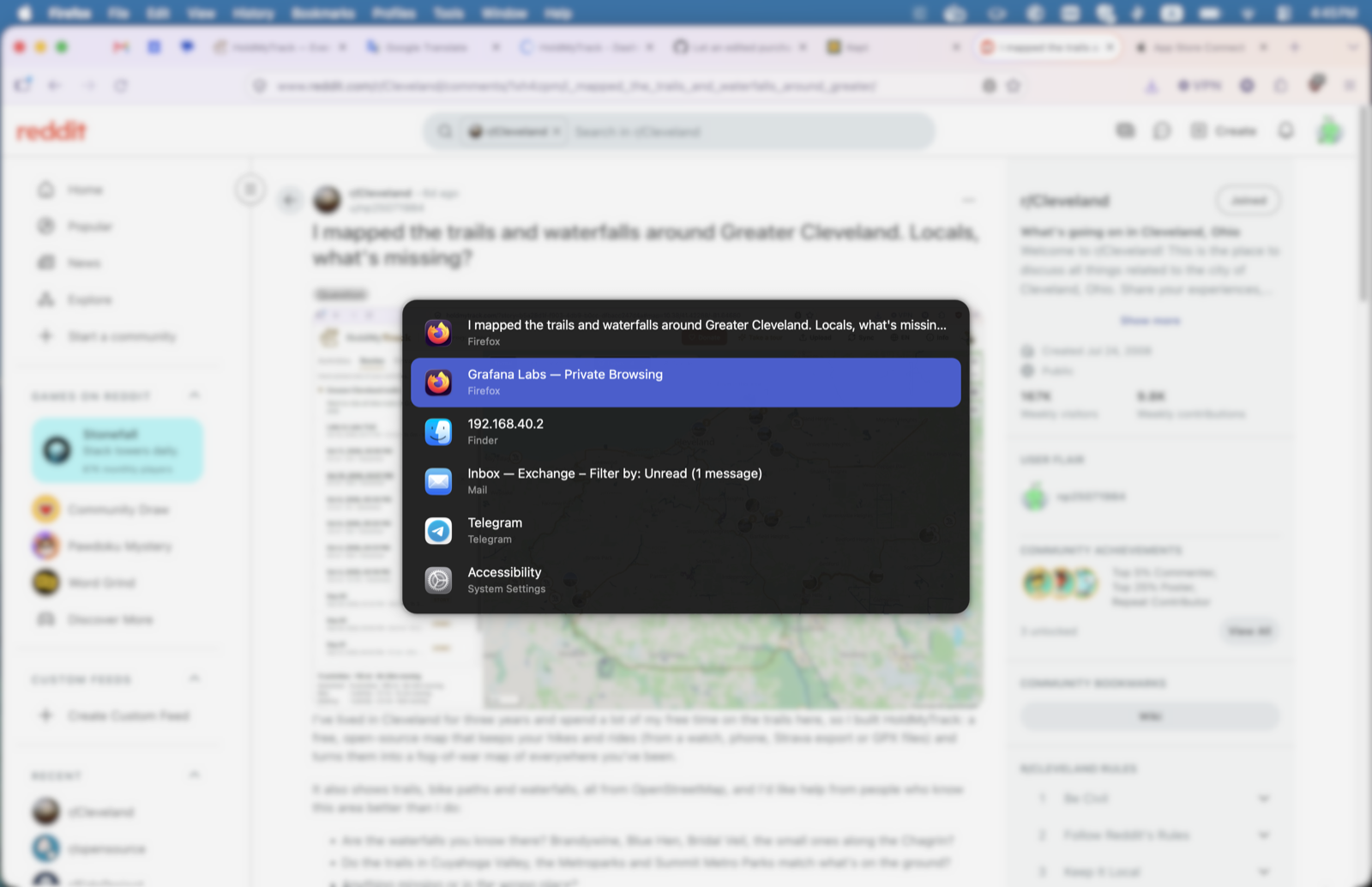
A window switcher for this Space
Lists windows, not apps, from the current Space only, most recently used first. Hold ⌘, tab to the one you want, release.
Focus that follows you
Arrive on a Space and you can type straight into the window you last used there, even when macOS left focus somewhere else.
Space shortcuts that keep up
⌃ 1 … ⌃ 9 switch instantly, or with a slide as long as you choose, and still work while a swipe is sliding. Turn them on in System Settings → Keyboard → Keyboard Shortcuts → Mission Control.
Small on purpose
- One open-source binary of about 1 MB, run as a background service. No app, Dock icon or menu bar.
- One permission, Accessibility. No Screen Recording, no network.
- Set up in a text file, controlled with a few commands.
- Swipes, Mission Control and Stage Manager keep working exactly as before.
Install
macOS 13 or later, on Apple Silicon or Intel. In Terminal:
curl -fsSL https://raw.githubusercontent.com/np25071984/Scope/main/install.sh | sh
Or with Homebrew:
brew tap np25071984/scope https://github.com/np25071984/Scope
brew trust np25071984/scope
brew install scope
brew services start scope
On first start, scope asks for Accessibility permission and opens the right pane of System Settings: turn on scope there. Everything else, from settings to uninstalling, is in the README.